Blogs
Features of Tally to WhatsApp Modules:-
WhatsApp is the biggest messaging social media app in the world, you can send anything anywhere in the format of Text, Images, Videos, music, and PDF files, from one contact Number to another contact Number easily and quickly, most of our customers are using it. Leverage its reach to benefit you and help in making business more efficient. Our Tally to WhatsApp tool will help you to reach your customers quickly and effortlessly. You can send Invoice/Confirmation Receipt/Payment Advice/Outstanding Reminders.
The WhatsApp module is compatible with Tally Prime. Send any document from within Tally i.e. invoices, challans, etc. Instantly intimate your suppliers about payments made by you. Acknowledge payments received from your clients.
Why need?:-
If you want to send your Invoices in PDF files, Reports, Outstanding reminders, Follow-ups, and Text Messages through WhatsApp from Tally software, then this tool is very useful for you. Because with the help of these tools, you can very easily send text messages, Invoices in PDF format, also you can send reports, outstanding reminders, and Follow-up messages through WhatsApp automatically. You can also send in a group and broadcast Messages.
Benefits of Tally to WhatsApp Module:-
These tools which are being shown to you now, these tools will work on Tally Prime.
Step 2 : Ensure – > System Date Format Should be:
E.g.: 04-05-2022 if not, then do change in pc date setting and make format as DD-MM-YYYY

Step 3: Add TCP
Step 4: Restart Tally (It is Mandatory to Restart Your Tally Prime after adding TCP)
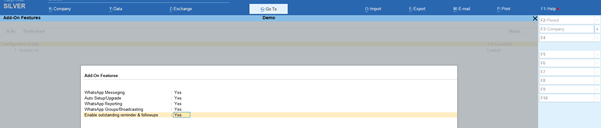
Step 4: Enable Add-on Feature [F1 Help -> TDL & Addons -> F6 Addon Features]
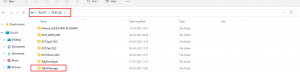
Type one drive name E.g.: D:\
Save “Tallywhatsapp” folder in same drive
Click on Yes OR Click ENTER button
Ensure “TallyWhatsapp”Folder saved in D Drive

WhatsApp Reporting > Yes, then type owner no, so it will show in list in all reports to avoid typing every time
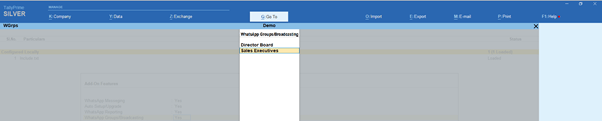
WhatsApp Group/Broadcast > Yes. You can set name of WhatsApp group, broadcasting group name if any available in your WhatsApp no.
Enable Outstanding Reminder & Follow-ups > Yes
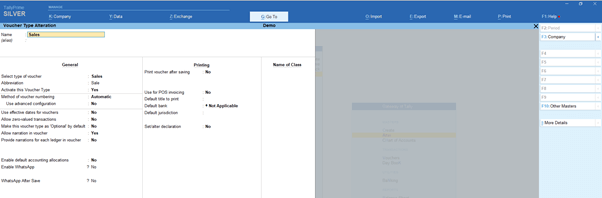
Step 5: Enable WhatsApp in Required Voucher Type Master
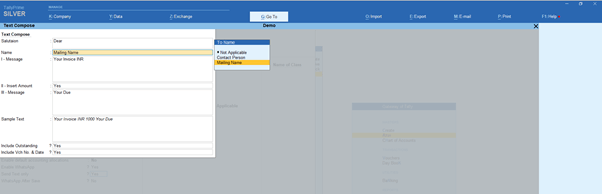
Set Text Message Template/Format as you wish
Step 6: Connect Tally with your Mobile WhatsApp
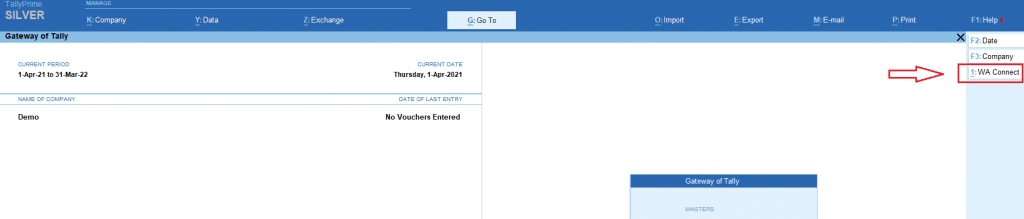
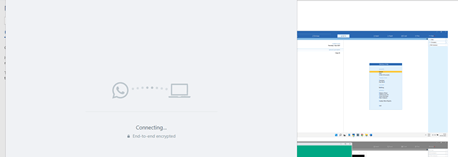
Single Click only -> “WA Connect” Button, then wait 40 Seconds to Generate QR Code
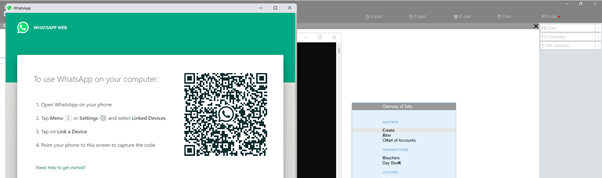
Scan QR Code [open your mobile WhatsApp -> Link Devices -> Click Lick Device -> Scan QR code
It will take few seconds to finish device linking, till then wait and It will auto close all windows
Now Your Tally is Successfully Connected with Your Mobile WhatsApp
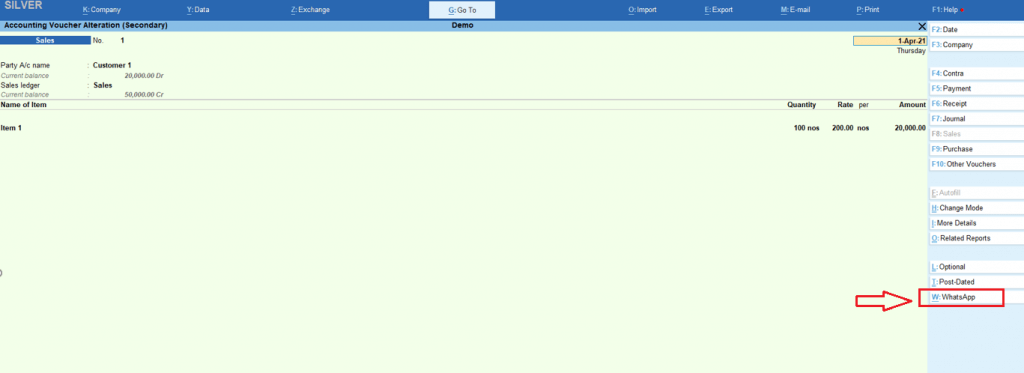
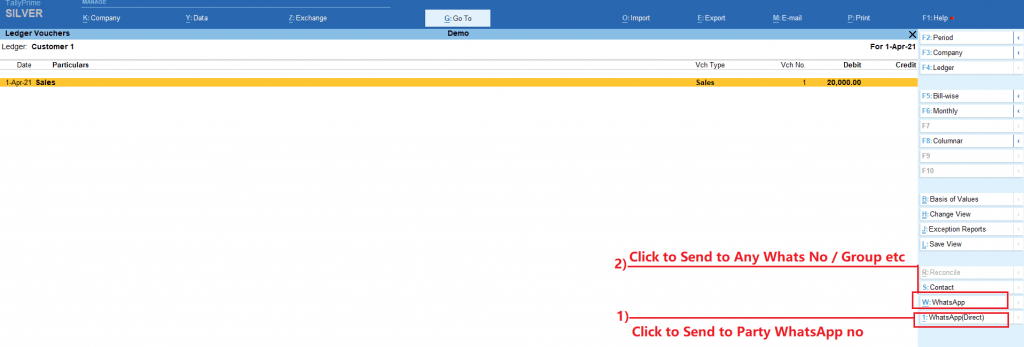
Step 7: Send WhatsApp from Voucher
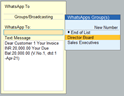
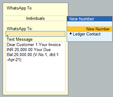
You have option to send it to WhatsApp Group / Broadcasting Group
Select Group Name from List and Continue to Send WhatsApp with PDF Attachment
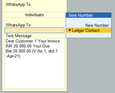
You have option to Send it to Party WhatsApp No.
You can also Send it to any WhatsApp No
Step 8: Send Ledger Statement to Party / Sales Man etc.
Gateway of Tally-> Display More Reports-> Account Books -> Ledger -> Select one Party Ledger
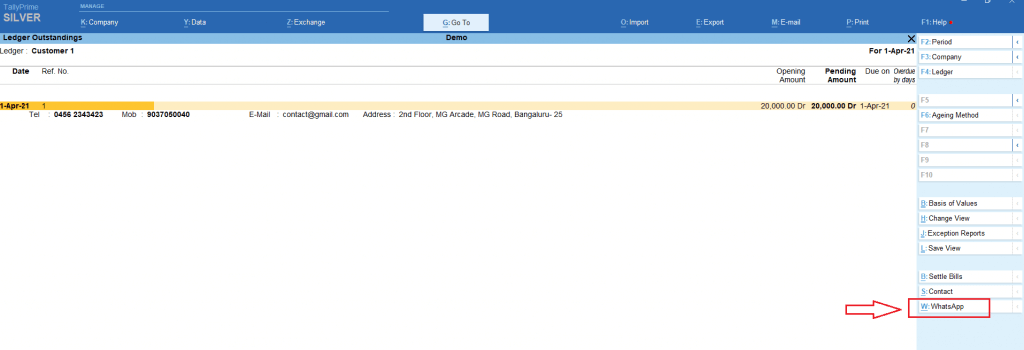
Step 9: Send Outstanding Reminder to Party
Gateway of Tally-> Display More Reports-> Statement of Accounts -> outstanding -> Ledger -> Select one Party
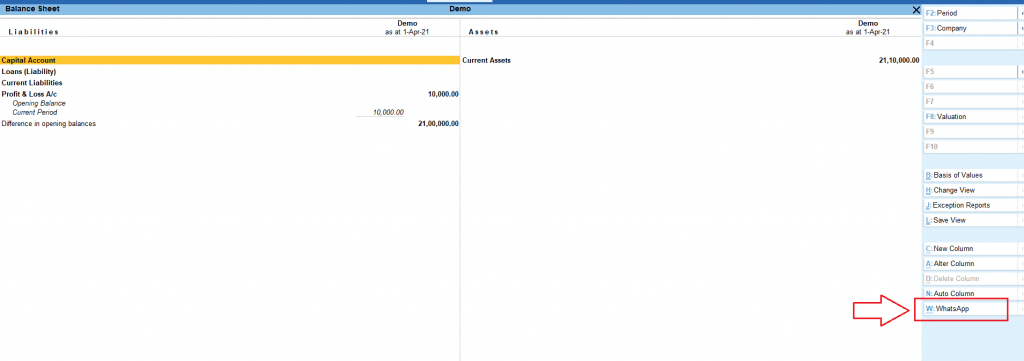
Step 10: you can send any report to any “WhatsApp no /groups”. WhatsApp Button Available in All Reports
Step 11: Outstanding Follow-ups, Reminder, and Auto WhatsApp Reminder to all Parties
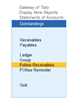
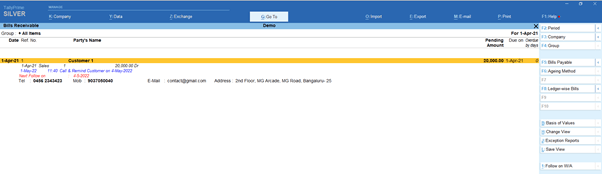
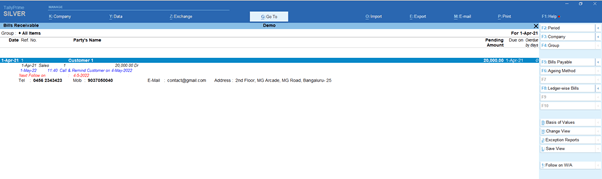
Gateway of Tally-> Display More Reports-> Statement of Accounts -> outstanding -> Follow Receivables
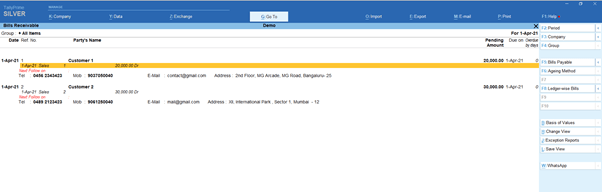
ENTER on Party Bill No for Typing Follow-ups Remarks, Next Date of Reminder Follow-ups etc.
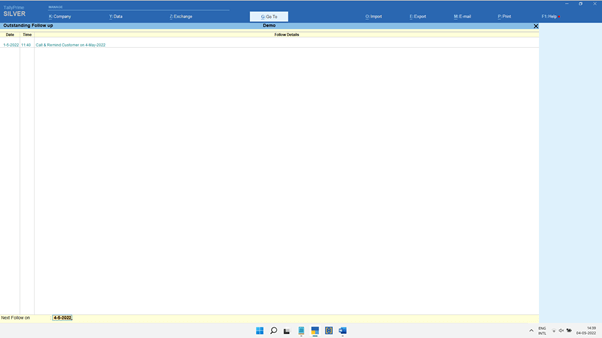
Type date wise remarks on follow-ups & give Next Follow-up Date to get Reminder
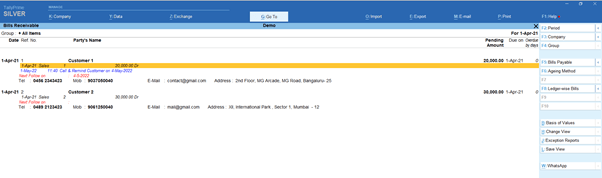
Remarks will be displayed in blue colour
It will show Reminder Report for the Day when you are Opening Tally & Loading Company
Reminder Report for the Day
Select Party using SPACE BAR OR Select All Parties (if Multiple Parties Showing in Reminder Report
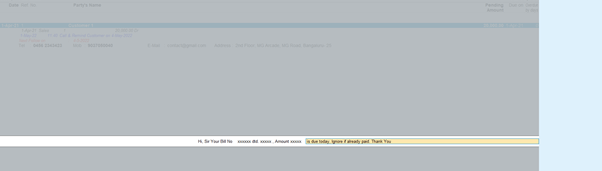
Then Click Follow on W/A
You can type Reminder Message Template & ENTER to Continue
Then, Tally will auto schedule Delivery of Reminder WhatsApp for Automatic Delivery of Messages
You can check status – Click CTRL + N (calculator panel)
It’s done. You can move to your routine work
Tally will execute WhatsApp Reminder Messages to Each Party one by one Automatically
However, you can check WhatsApp Delivery Status -> Click CTRL + N (calculator panel)
In Status, Information’s like: